Whether you need to connect a new device to your home network, share access with a guest, or recover a forgotten router key, finding your saved WiFi password is easier than you think. But once you extract it, how do you keep it safe?
By Editorial Team•Updated July 2026•12 min read
Quick Answer
To find a saved WiFi password on Windows, open Network & Internet Settings > Wi-Fi > Network and Sharing Center, click your connection, select Wireless Properties, and check "Show characters" in the Security tab. On Android, go to Settings > Network & internet > Internet, tap the gear icon next to your network, and tap Share to view the password via QR code.
What You Need to Know Before Viewing WiFi Passwords
Every time you connect to a wireless network, your device (whether it's running Windows, macOS, iOS, or Android) saves the SSID (network name) and the security key (password). This convenience feature means you don't have to type long strings of characters every time you come home or enter the office.
However, this also means those passwords are stored locally on your device. Extracting them is entirely legal and safe provided you own the network or have permission to access it. This guide covers how to access these stored credentials natively without relying on sketchy third-party "AI WiFi password viewers" or "find any WiFi password websites," which are frequently vectors for malware.
Native Methods: Find / View Saved WiFi Password
You do not need external software to view passwords for networks you are currently connected to or have connected to in the past. Here is the breakdown by platform.
How to find wifi password on Windows 10 & 11
Press the Windows Key + I to open Settings.
Navigate to Network & internet.
Scroll down and click on Advanced network settings (Windows 11) or Network and Sharing Center (Windows 10).
Click on your current Wi-Fi connection.
Click Wireless Properties, then select the Security tab.
Check the box next to Show characters. You will need administrator privileges to reveal the text.
How to find any wifi password on Android
Modern Android versions (Android 10 and up) make it incredibly simple to view and share network credentials.
Open your Android Settings app.
Tap Network & internet, then tap Internet (or Wi-Fi).
Tap the gear icon next to the network you are currently connected to.
Tap the Share icon (usually represented by a QR code).
Verify your identity using your fingerprint, face scan, or PIN.
The password will be displayed in plain text below the QR code.
Pro Tip: android export wifi passwords
If you need to back up multiple networks, Android doesn't have a native "export all" button without root access. You will need to share them individually via QR code, which can be scanned and saved to a document.
How to view wifi password on Mac
Apple stores all network credentials in the Keychain system.
Open the Keychain Access app (search for it via Spotlight).
In the search bar at the top right, type the name of the WiFi network.
Double-click the network name in the results list.
Check the box that says Show password.
Enter your Mac administrator username and password when prompted.
Interactive Tool
Device Compatibility Checker
Not sure if your specific device OS allows native password viewing? Select your platform below.
The Security Risk: What happens after you extract them?
Once you extract your WiFi passwords—perhaps saving them into a Word document, a Google Sheet, or a CSV file for a network migration—you have created a massive security vulnerability.
Many users dump a list of router admin credentials, WPA3 keys, and ISP login details into a plain text file on their desktop named "passwords.txt" or "network-settings.docx". If your laptop is stolen, or if malware accesses your file system, your entire network is compromised. This is where document password protection becomes essential.
Our Top Choice for Guarding Network Credentials
When you back up your router setups or plaintext Wi-Fi keys, local encryption is non-negotiable. After evaluating native OS capabilities and various open-source zip utilities, Folder Protect stands out as our premier recommendation.
Available for Windows 11/10/8/7, macOS 13+, Android, and iOS.
Why Folder Protect Beats Native Document Security
Built-in Credential Storage
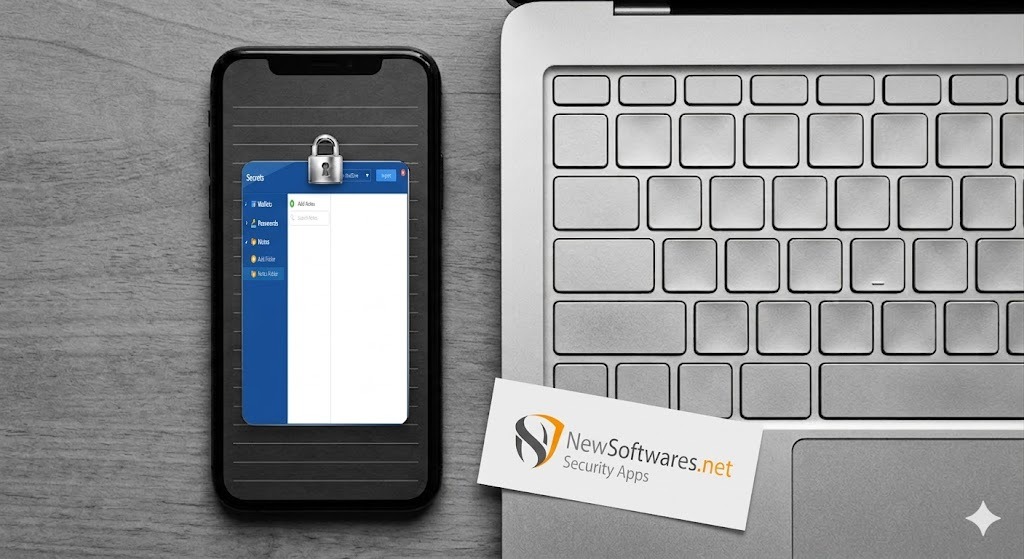
While locking text files is great, this suite actually features a specialized 'Secrets' module designed precisely for this scenario. Instead of managing documents, you can input your network SSIDs, router admin logins, and WPA3 keys directly into the app's encrypted password manager or secure notes interface.
True Virtual Drive Security
Folder Protect generates a secure virtual partition on your machine. You don't have to deal with the cumbersome process of decrypting, extracting, editing, and re-compressing like you do with standard archiving tools. Just open your Wi-Fi credential file directly from the mounted drive, make your changes, and save. The AES-256 bit encryption operates invisibly in the background.
Seamless Cloud Syncing without Compromise
Storing passwords on cloud servers is risky, but Folder Protect bridges the gap by creating local encrypted containers that sync automatically with Google Drive, OneDrive, or Dropbox. Your data remains completely unintelligible to the cloud providers, but you still benefit from cross-device accessibility.
Offline Portable USB Vaults
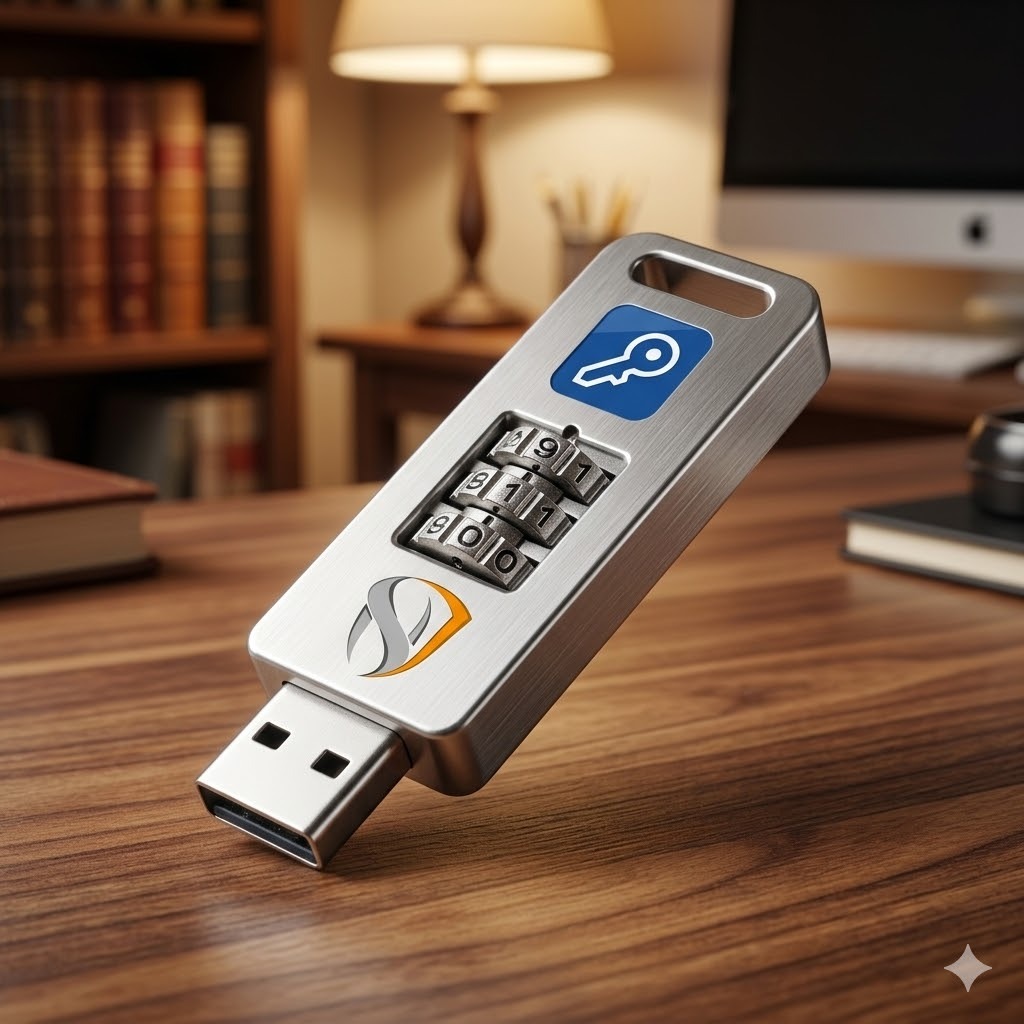
If you need to move network configurations to an offline machine, the software allows you to compile your encrypted files into a self-executing portable locker. You can carry your credentials on a thumb drive and access them securely on any Windows PC without needing to install the main application.
Document Password Protection Deep Dive
Permissions Password vs Open Password — Explained
When dealing with document security software (like securing a PDF of your router configurations), you will encounter two types of passwords:
Password Type
What it Does
Security Level
Best For
Open Password (Document Open)
Requires a password just to open and view the contents of the file. Encrypts the payload.
High (AES Encryption)
Protecting sensitive data (WiFi passwords, router logins) from unauthorized eyes.
Permissions Password (Master/Owner)
Allows anyone to open and read the file, but restricts printing, copying, or editing.
Low (Easily Bypassed)
Sharing read-only drafts or preventing accidental edits by colleagues.
Conclusion: Never use a permissions password to protect your WiFi or network credentials. Always use an Open Password or a dedicated locker like Folder Protect.
Interactive Tool
Password Strength Evaluator for Document Passwords
If you are locking a document containing all your network credentials, ensure your master password is secure. Test it below (processed entirely locally in your browser).
Waiting for input...
Troubleshooting WiFi & Document Passwords
You may see the error: "couldn't be opened for import. if the file is password protected, try removing the password". Google Sheets and Google Docs cannot decrypt locally encrypted files (like Excel files with open passwords). You must open the file on your desktop, remove the password, upload it, and then rely on Google Drive's account-level security, or use a tool like Cloud Secure to encrypt the folder directly.
Because the application utilizes strict AES 256-bit standards, there are no backdoor bypasses if you forget your master key. This strict architecture ensures no one else can break in, but it also means you must remember your credentials. The developer, NewSoftwares, cannot magically recover lost data, though you might recover an account via official license verification if a backup protocol was established. Do not attempt to use cracking tools, as they risk permanently corrupting your encrypted data.
The native Chrome browser doesn't have any feature to password protect profiles directly anymore (the Supervised Users feature was removed). To protect saved web passwords and router logins stored in Chrome, you must lock the Chrome application itself using third-party software like App Lock or Folder Protect, or rely on your Windows/Mac OS user login password.
Frequently Asked Questions
An open password encrypts the file so it cannot be viewed without the key. A permissions password leaves the document visible to anyone, but restricts their ability to edit, print, or copy the text. For sensitive data like WiFi passwords, always use an open password.
It depends on the encryption standard and password length. Legacy Word documents (Office 2003) using weak encryption can be broken in seconds. Modern AES-256 encryption (used by current Microsoft Office and Folder Protect) is currently considered unbreakable by brute force, provided you use a long, complex password (12+ characters).
No. Websites claiming to be an "AI wifi password viewer" or "find any wifi password website free" are scams. They cannot magically connect to local routers over the internet. They exist primarily to serve ads, steal your information, or distribute malware. Only rely on native OS methods to view passwords of networks you have legitimately connected to.
If you need to share a password list securely, you can use built-in Office encryption. Save a Word Document and choose File > Info > Protect Document > Encrypt with Password. The recipient will only need Microsoft Word to open it. Alternatively, use a ZIP utility (like 7-zip password protect) to encrypt a standard text file, and share the password via a separate channel (like SMS).
The Bottom Line
Finding your WiFi password on Windows, Mac, or Android is straightforward using native settings. However, the real challenge arises after you extract that data. Storing router configurations, network keys, and IP addresses in unprotected desktop files invites severe security risks.
While native tools like Microsoft Word offer basic file-by-file encryption, we recommend Folder Protect for users needing a robust solution. Whether you are opting for the generous 1GB free tier or investing $39.95 for the unlimited Pro version, it ensures cross-platform document security, seamless encrypted cloud syncing, and dedicated credential management without the hassle of manual ZIP extraction.